

Selenium
Basic Interview Q&A

1. What is Selenium? Explain its advantages.
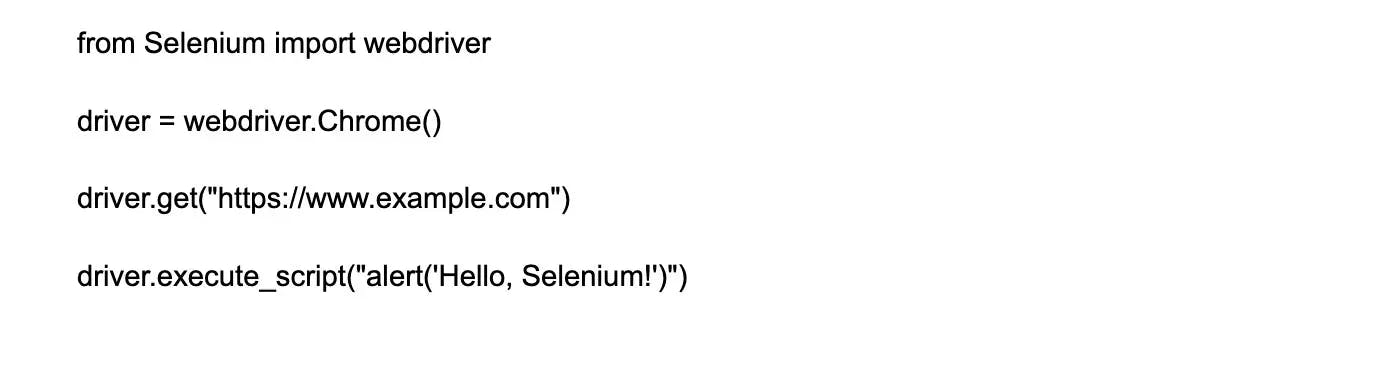
Selenium is an open-source automation testing tool widely used for web application testing. It allows users to write test scripts in various programming languages like Java, Python, and C#. Selenium provides a set of APIs and libraries to interact with web browsers, enabling testers to simulate user actions and automate repetitive tasks.
Advantages of using Selenium include:
- Cross-browser compatibility: Selenium supports multiple browsers like Chrome, Firefox, and Safari, ensuring your web application works consistently across platforms.
- Platform independence: Selenium is compatible with different operating systems, allowing testers to write and execute tests on various platforms.
- Language support: Selenium supports multiple programming languages, providing flexibility for developers and testers.
- Extensibility: Selenium's modular architecture allows users to extend its functionality by integrating with other frameworks or tools.
- Community Support: Being an open-source tool, Selenium has a large and active community, offering extensive documentation, forums, and support.
2. What are the different forms of Selenium?
There are three different forms of Selenium: Selenium IDE, Selenium WebDriver, and Selenium Grid.
- Selenium IDE (Integrated Development Environment) is a Firefox plugin that is used to record and playback user actions. It is primarily used for simple testing tasks and is well-suited for beginners.
- Selenium WebDriver is a web automation framework that supports multiple programming languages such as Java, Python, and Ruby. It provides a more advanced and flexible approach to automation testing and allows developers to automate complex web-based testing scenarios.
- Selenium Grid is a tool that enables simultaneous testing of multiple web applications across different devices and browsers. It allows testers to execute tests on a centralized hub and distribute them across different nodes for faster execution.
3. How do you handle iframes in Selenium WebDriver?
To handle iframes in Selenium WebDriver, you need to first switch the context to the iframe. This can be done using the switchTo() method provided by WebDriver. You can switch to the iframe either by its name or ID, or by locating an element within the iframe.
Once the context is switched, you can interact with the elements within the iframe as you would with a regular web page. To switch back to the parent window or default content, you can use the defaultContent() method.
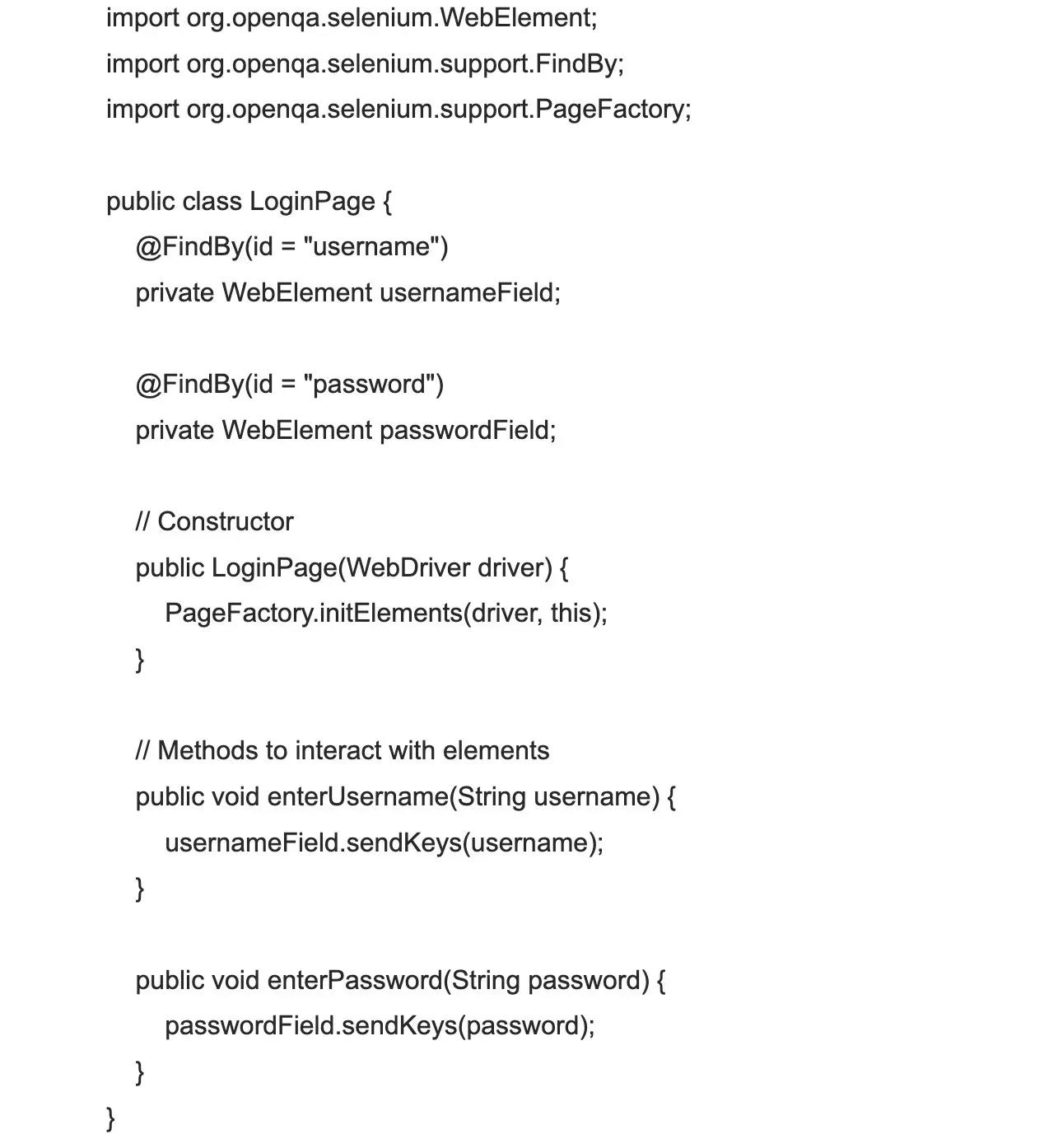
It's important to note that iframes can sometimes cause synchronization issues with WebDriver, as it may not wait for the content to load fully before switching contexts. Therefore, it's recommended to add explicit waits or use a framework like Page Object Model to handle iframes.
4. What are some limitations of Selenium?
Selenium, while being an immensely powerful tool for web automation, does come with certain limitations that are important to acknowledge:
- Browser Execution Speed: While Selenium supports multiple browsers, execution speed can vary between them. Some operations may perform slower on one browser compared to another, which can impact overall test runtime.
- Setup Complexity: Setting up Selenium can be intricate, especially for those new to automation or programming. It requires understanding WebDriver, configuring browser drivers, and integrating with testing frameworks.
- Lack of Built-In Reporting & Test Management: Selenium itself doesn't offer built-in reporting or test management features. Integrating with third-party tools like TestNG or Allure for reporting and test orchestration is often necessary.
- Web-Focused: Selenium specializes in web applications. While it can handle mobile web testing, for native or hybrid mobile apps, one would need to integrate with frameworks like Appium that expand Selenium's capabilities to mobile.
- Handling Dynamic Content: Selenium might struggle with handling highly dynamic web content, where elements are constantly changing or loading asynchronously. In such cases, incorporating waits and synchronization techniques are crucial but can complicate script development.
- Maintenance Overhead: Automated tests require maintenance as applications evolve. Selenium tests can be particularly sensitive to changes in the web application’s interface, requiring frequent updates to test scripts.
5. Which browsers/drivers are supported by Selenium Webdriver?
Selenium WebDriver provides support for the following browsers, each with its specific driver that facilitates communication between your tests and the browser:
- Google Chrome: Supported by ChromeDriver.
- Mozilla Firefox: Supported by GeckoDriver.
- Safari: Comes with its own built-in WebDriver support since Safari 10.
- Microsoft Edge: Supported by EdgeDriver.
- Internet Explorer: Although Internet Explorer is largely obsolete, Selenium still supports it through the Internet Explorer Driver; however, its usage is generally discouraged due to security concerns and Microsoft's shift toward Edge.
Each browser driver acts as a bridge between the Selenium WebDriver and the browser itself. It is crucial to download and maintain the driver version that is compatible with the version of the browser you are testing on to prevent any disruption in test execution.
6. What is Selenium 4 and how is it different from other Selenium versions?
Selenium 4 is the most recent update to the Selenium test automation framework, and it introduces a number of key enhancements and features that distinguish it from earlier versions, such as W3C WebDriver Standard Compliance, Improved Debugging and Observability, Enhanced Selenium Grid, Support for Chrome DevTools Protocol, Additional Locator Strategies, Native Support for Mobile Testing with Appium, Modular Grid Architecture, among others.
Selenium 4 is poised to offer a more current, robust, and flexible automation testing experience with its range of new features and functionalities, making it a significant upgrade over earlier versions of the framework. Users updating from previous versions would benefit from the improved capabilities but may need to make a few minor updates to test code and infrastructure to take full advantage of the new features.
7. What are some features of Selenium 4?
Selenium 4 introduces several new features and enhancements. Some of the notable features include:
- W3C WebDriver Standard Compliance: Selenium 4 conforms fully to the W3C WebDriver standard, which unifies the driver and browser communication protocol. This ensures more consistent behavior and compatibility across different browsers, as well as better integration with modern web development and testing practices.
- Improved Debugging and Observability: The introduction of more comprehensive logging and better exception handling greatly facilitates debugging. The new version also offers a richer and more actionable set of error messages that includes screenshots to help diagnose issues promptly.
- Enhanced Selenium Grid: The Selenium Grid, which allows for parallel and remote test executions, has better UI and diagnostics. Moreover, it supports full Docker integration, simplifying the infrastructure setup for distributed testing.
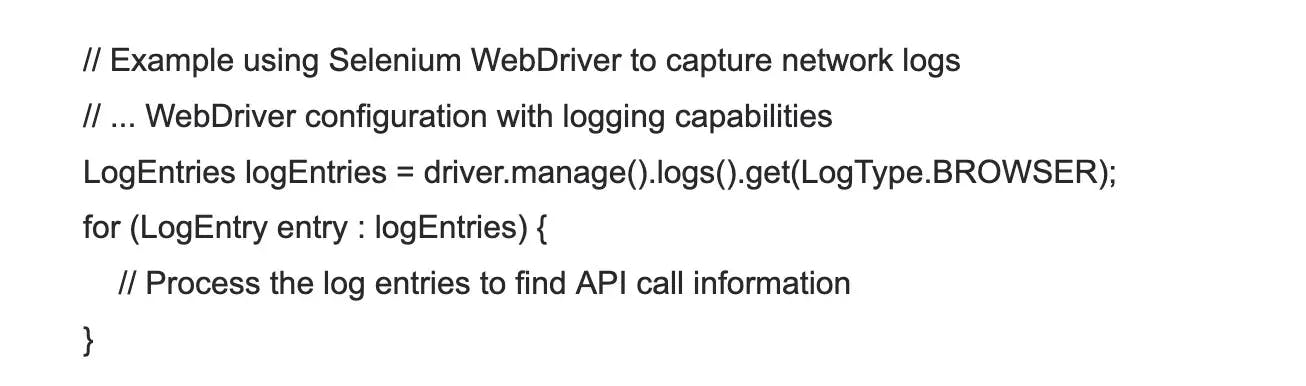
- Support for Chrome DevTools Protocol: Selenium 4 leverages the Chrome DevTools Protocol (CDP) allowing testers to perform a more refined and in-browser series of tests for performance, network conditions simulation, accessibility, and other browser attributes.
- Additional Locator Strategies: The addition of new locator strategies like relative locators (formerly known as "friendly locators") provides more natural language expressions for identifying elements based on their position relative to others e.g., above, below, to the left of, etc.
- Native Support for Mobile Testing with Appium: Selenium 4's improved support for mobile testing is facilitated by native integrations with Appium, directly supporting mobile browser and application testing across a variety of platforms.
- Modular Grid Architecture: The new Selenium Grid 4 architecture is modular, which enhances scalability and the ability to manage the individual components for distributed test execution separately.
- Revamped IDE: Selenium IDE, the record and playback tool, now comes with more robust cross-browser support and modern features like playback control, easier test case debugging, and a structured command interface.
- Bi-directional Communication (through CDP): This allows for more sophisticated testing, such as intercepting network requests and real-time monitoring of browser events, which were not possible with previous Selenium versions.
8. Can we test APIs or web services using Selenium Webdriver?
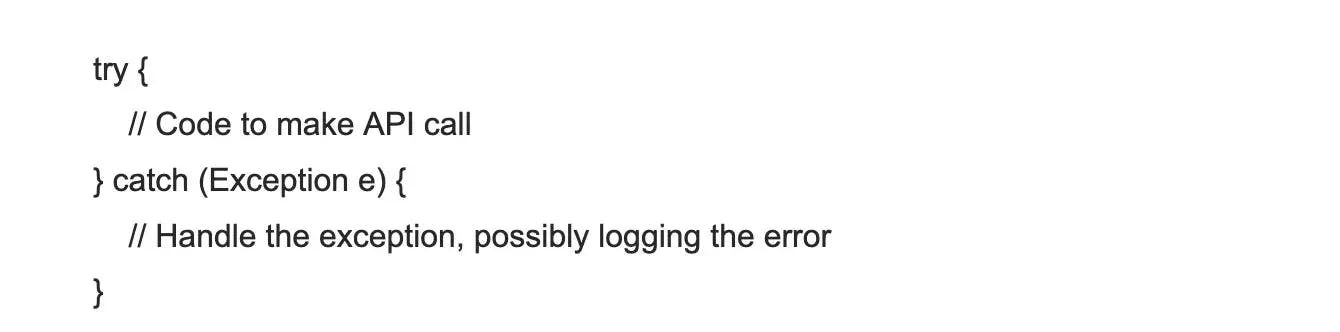
Selenium WebDriver is not designed to test APIs or web services directly. It is a tool for automating web browsers, and its primary purpose is to interact with web pages by simulating user actions. Testing APIs or web services typically involves sending HTTP requests and validating the responses, which is not a capability provided by Selenium WebDriver.
If an API or web service interaction is part of a larger web application flow that can be accessed through a browser interface, Selenium WebDriver can be used to automate the browser interactions and indirectly verify that the web service is working as expected. However, it will not be able to test the API or web service independently of the user interface.
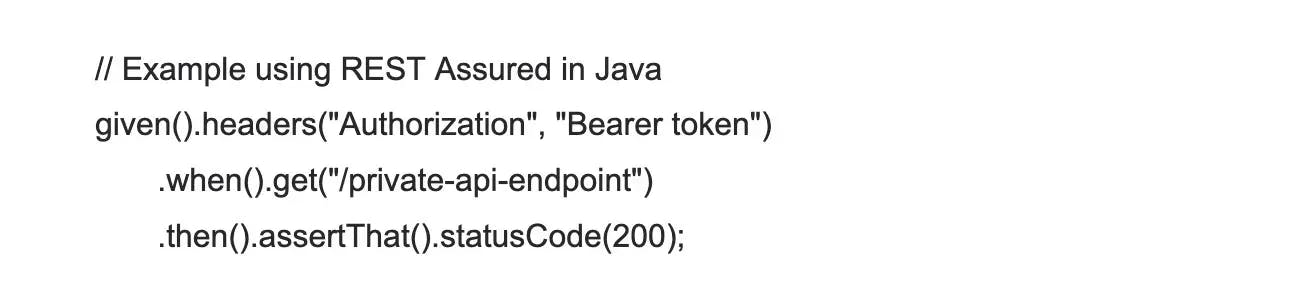
For true API or web service testing, tools explicitly designed for this purpose, such as Postman, Rest-Assured (for Java), HTTPie, or frameworks like JMeter, are more appropriate. These tools allow you to send requests to APIs and validate the responses without the need for a user interface. They can handle various types of requests (GET, POST, PUT, DELETE, etc.), set headers, work with different data formats like JSON or XML, and verify response codes and payloads.
To best utilize test automation efforts, it's recommended to use Selenium WebDriver for what it is designed for — automated testing of web applications through browsers — and to employ other more suitable tools for API or web service testing.
9. What are the various ways of locating an element in Selenium?
In Selenium, elements within a web page can be located using various strategies, each suitable for different scenarios. Here are the primary locator strategies:
- By ID: Using the By.id locator with find_element to locate an element with a specific ID, which is presumed to be unique in the DOM.
WebElement elementById = driver.findElement(By.id("elementId"));
- By Name: Using By.name to find an element with the name attribute.
WebElement elementByName = driver.findElement(By.name("elementName"));
- By Class Name: Employing By.className to locate an element using its class attribute. It's useful for elements with a common styling class.
WebElement elementByClassName = driver.findElement(By.className("className"));
- By Tag Name: With By.tagName, you can find an element by its HTML tag.
WebElement elementByTagName = driver.findElement(By.tagName("tagName"));
- By Link Text: By.linkText is ideal for locating anchor () elements by their exact text content.
WebElement elementByLinkText = driver.findElement(By.linkText("Link Text"));
- By Partial Link Text: Similar to By.linkText but allows partial matches, which can be useful if the link text is long or dynamic.
WebElement elementByPartialLinkText = driver.findElement(By.partialLinkText("Partial Link Text"));
- By XPath: By.xpath lets you navigate through elements and attributes within the HTML document to locate complex or nested elements.
WebElement elementByXpath = driver.findElement(By.xpath("//div[@id='example']"));
- By CSS Selector: By.cssSelector can locate elements by their CSS properties, and it’s a powerful method for complex, style-based queries.
WebElement elementByCssSelector = driver.findElement(By.cssSelector(".class #id"));
10. How can we inspect the web element attributes in order to use them in different locators?
To inspect web element attributes, you can use various browser developer tools like Chrome DevTools or Firefox Developer Tools. Here's how you can answer this:
- Right-click on the element you want to inspect and select "Inspect" from the context menu. This will open the developer tools.
- In the developer tools, ensure you are in the "Elements" or "Inspector" tab.
- Locate the HTML code corresponding to the element you want to inspect. It will be highlighted in the developer tools.
- In the HTML code, you can find different attributes of the element such as "id", "class", "name", etc.
- You can use these attributes in different locators like CSS selectors, XPath, or others to locate the element in test automation.
11. What is an XPath?
XPath is a language used to locate elements on a webpage. It stands for XML Path Language, and it uses path expressions to navigate through the XML structure of the page. XPath allows for the selection of elements based on properties such as tag name, attribute values, and more.
This language can be used in conjunction with other web development tools, such as Selenium, to help users automate tests and find specific elements on a page.
12. What is an absolute XPath?
An absolute XPath is a way to locate an element on a web page by providing the complete path from the root element to the target element. This path starts at the HTML tag, which is the parent of all other elements, and includes every parent element of the target element up until the root of the document.
Absolute XPaths are useful when you need to specify an exact location for an element and have a unique, non-changing path to that element. However, they can be long and unwieldy, making them less flexible and more difficult to read and maintain. Additionally, if the structure of the page changes, the XPath may no longer be valid, requiring updates to be made.
13. What is a relative XPath?
A relative XPath is a way to locate elements in a web page based on their relationship to other elements. It is a shorter and more concise XPath expression compared to using an absolute XPath. The relative XPath starts from the current context node and navigates through the HTML structure.
It uses various techniques like traversing through parent, child, and sibling elements to find the desired element. Relative XPath is useful when the structure of the web page changes frequently, as it allows developers to find elements based on their relative position rather than relying on specific paths.
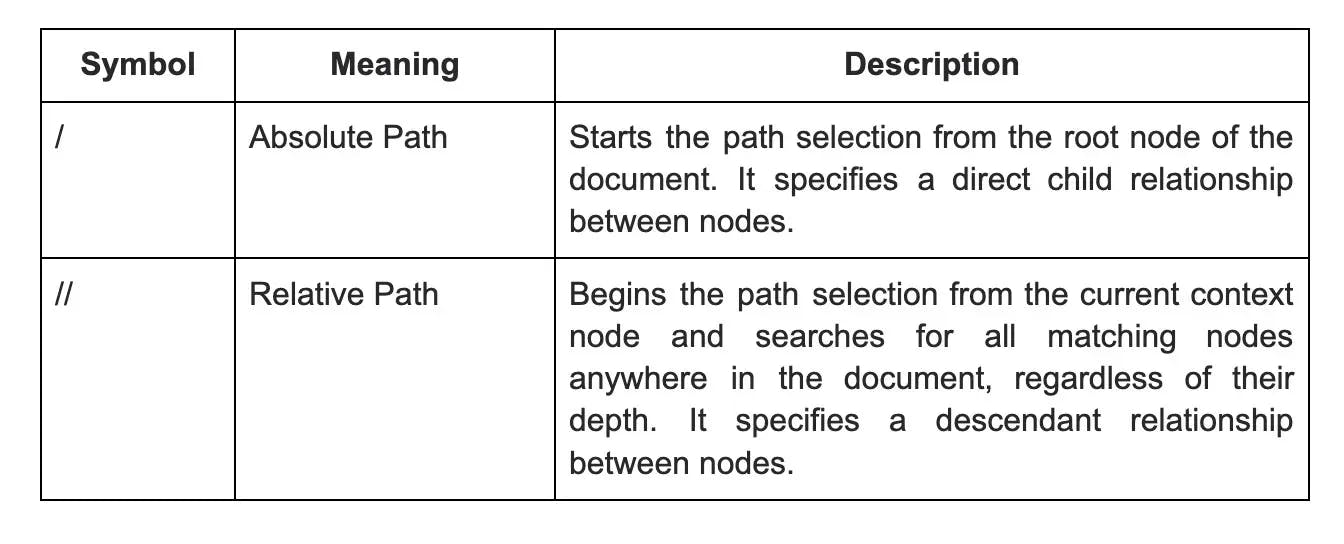
14. What is the difference between a single slash(/) and a double slash(//) in XPath?
15. How can we locate an element by only partially matching the value of its attributes in Xpath?
To locate an element by partially matching the value of its attributes in XPath, you can use the "contains" function. The contains function checks if a particular attribute contains the specified value.
For example, if you want to locate an element with an attribute value that starts with "abc", you can use the XPath expression //*[contains(@attributeName, 'abc')]. This will find all elements that have the attribute with a value containing "abc". The * selects any element, but you can also specify the element type instead.
This method is helpful when the value of the attribute is dynamic and you need to match it only partially.
16. How can we locate elements using their text in XPath?
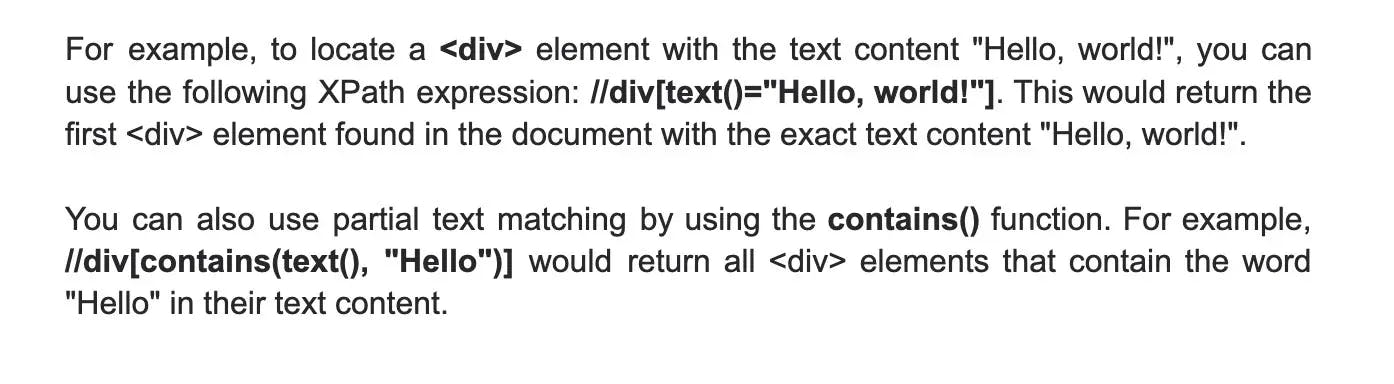
To locate elements using their text in XPath, you can use the text() function within the XPath expression. This allows you to select elements based on their text content, rather than their attributes or other properties.
17. How can we move to the parent of an element using XPath?
To move to the parent of an element using XPath, we can use the ".." notation. This notation allows us to navigate up the tree to the parent element of the current node. For example, if we have an XML document with the following structure:
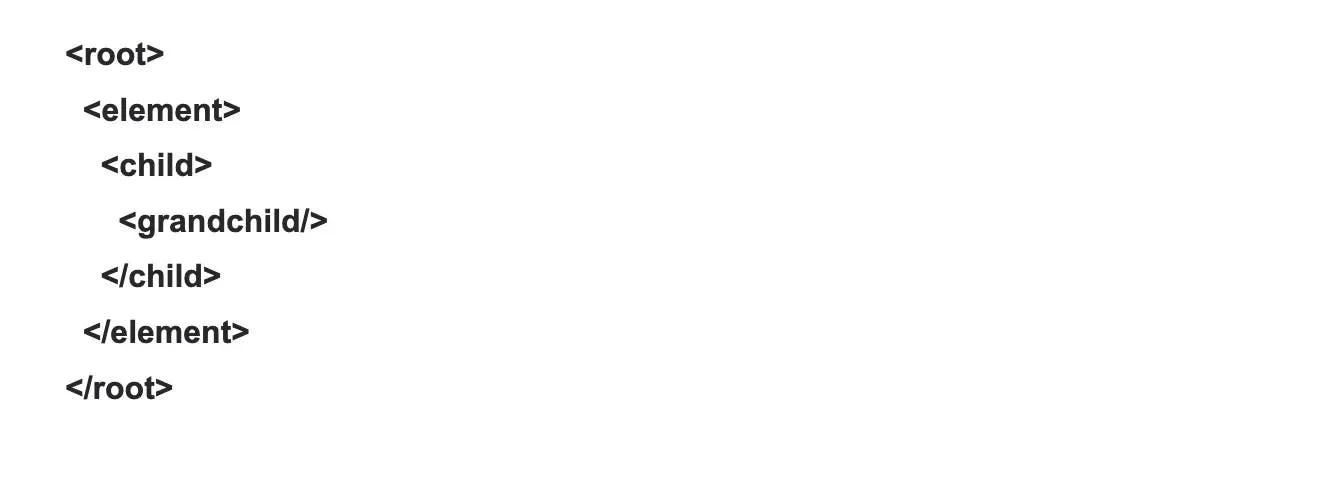
And we are currently at the "grandchild" element, we can use the XPath expression "../.." to select the "element" node, which is the parent of the "child" node, which is the parent of the "grandchild" node. This notation can be used repeatedly to navigate up the tree to higher-level parent elements as needed.
18. How can we move to the nth-child element using XPath?
In XPath, to move to the nth child of a specific element, you can use the square bracket notation which provides a way to select the nth element in a list of siblings. Here's the basic syntax:
//parent_element/*[n]
For example, if you want to select the third child of a element, your XPath would look like this:
//div/*[3]
This XPath expression selects the third child element of every in the document, irrespective of the child's tag name.
If you know the tag name of the child element, you can specify it directly:
//div/child_element_tag[3]
Furthermore, to select elements based on a repeating pattern, such as every other child starting from the second, you would use the position() function and the modulus operator in a predicate. Here's how you might express this:
//parent_element/*[position() mod 2 = 0 and position() >= 2]
This XPath expression selects every second child of the parent_element, starting from the second child. position() gives the current position of the node as it's processed, mod 2 checks for every second node, and the position() >= 2 ensures that the counting starts from the second child.
Note: The nth-child() pseudo-class used in your example is specific to CSS Selectors, not XPath. XPath and CSS Selectors, while similar in their goal to select nodes or elements from a document, have different syntax and capabilities.
19. What is the syntax of finding elements by class using CSS Selector?
To find elements by class using CSS Selector, the syntax is as follows:
element.class
For example, if you wanted to find all elements with the class name "container", you would use the following CSS Selector:
.container
This would select all elements with the class name "container". It's important to note that when using CSS Selectors to find elements by class, you must prefix the class name with a dot (".") to indicate that you are searching for a class. If you want to find multiple classes, you can chain them together by appending additional class names with no space in between:
.class1.class2
This would select all elements that have both class1 and class2.
20. What is the syntax of finding elements by id using CSS Selector?
To find elements by their id attribute using CSS Selector, you can use the '#' symbol followed by the id value. The syntax is #idValue. For example, if you have an element with the id attribute set to myElement, you can select it with the following CSS Selector: #myElement.
This selector will match any element that has an id attribute with the exact value of myElement. It is important to note that the id value is unique within an HTML document, so this selector will only match a single element. If there are multiple elements with the same id, only the first one will be selected.
21. How can we select elements by their attribute value using the CSS Selector?
To select elements by their attribute value using the CSS Selector, we use the syntax [attribute=value]. The attribute is the name of the element's attribute, and the value is the value of that attribute we want to select.

22. How can we move to the nth-child element using the CSS selector?
To move to the nth-child element using the CSS selector, you can use the :nth-child() pseudo-class. This selector allows you to target elements based on their position within their parent element.
To use the :nth-child() selector, you specify the expression inside the parentheses. The expression can be a number, keyword, or formula. For example, :nth-child(3) will target the third child element, while :nth-child(even) will target all even child elements.
This selector is a powerful tool when you want to apply specific styles or manipulate certain elements based on their position in a list or container.
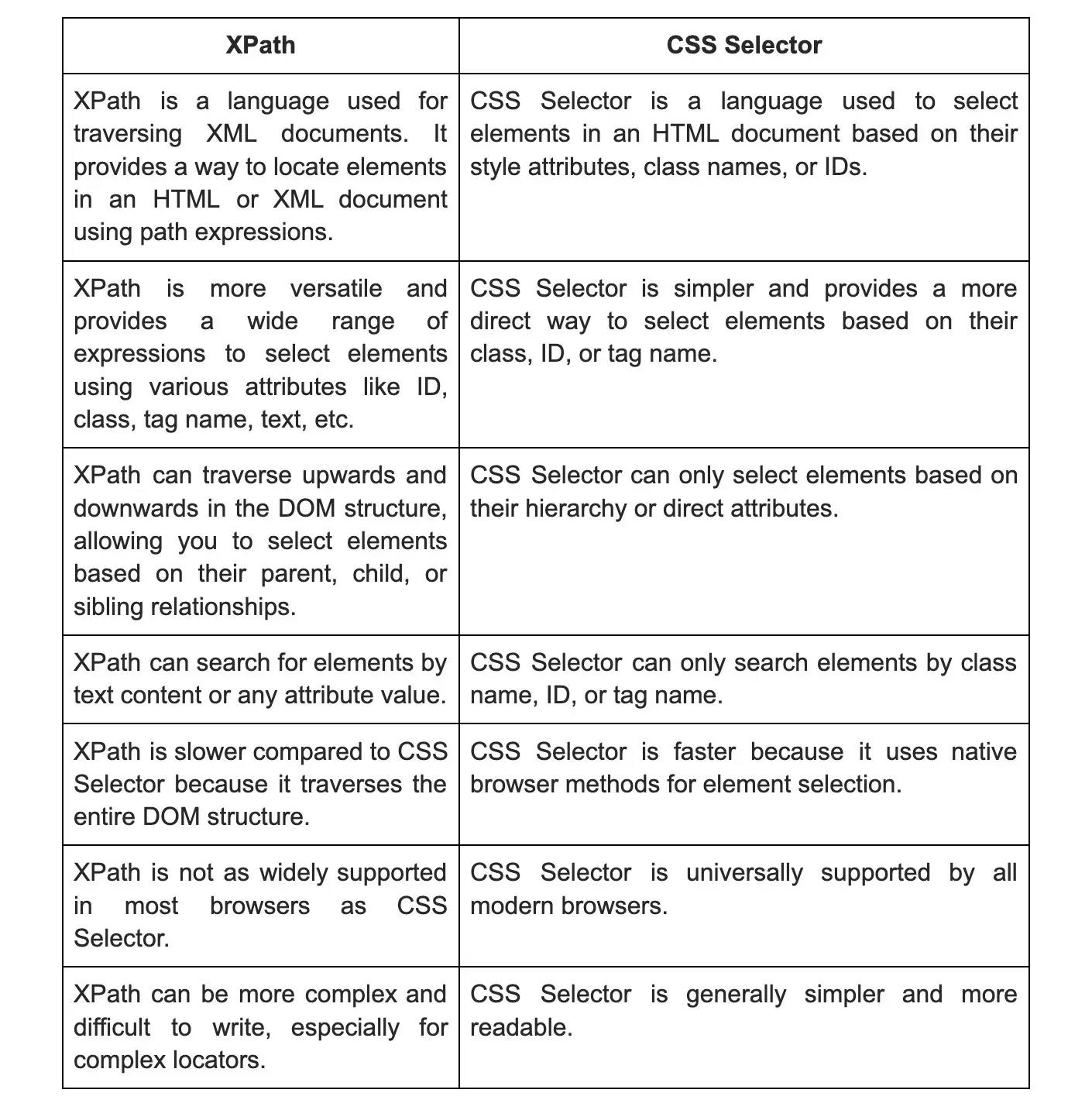
23. What is the fundamental difference between XPath and CSS selectors?


Wrapping up
Preparing well for your Selenium interview means studying a diverse range of topics. By thoroughly reviewing the top 100 Selenium interview questions and answers, you can enhance your chances of acing the interview. Remember, practice makes perfect. Besides studying the interview questions, spend time coding, debugging, and familiarizing yourself with real-world scenarios. The more hands-on experience you gain, the better you will perform in interviews.
Nevertheless, if you aim to bypass this procedure and rapidly hire a Selenium developer, you have the option of selecting Turing to access thoroughly evaluated developers of exceptional caliber. Alternatively, if you are a proficient developer seeking lucrative opportunities, you can explore our Selenium developer positions and swiftly apply to join a leading U.S. corporation.
Hire Silicon Valley-caliber Selenium developers at half the cost
Turing helps companies match with top quality remote JavaScript developers from across the world in a matter of days. Scale your engineering team with pre-vetted JavaScript developers at the push of a buttton.
Tired of interviewing candidates to find the best developers?
Hire top vetted developers within 4 days.





Leading enterprises, startups, and more have trusted Turing

Check out more interview questions
Hire remote developers
Tell us the skills you need and we'll find the best developer for you in days, not weeks.